Jan 14, 2025 · Updated Nov 2, 2026
# Generating meaningful file previews

**Kevin van Zonneveld**
Co-founder · Amsterdam, The Netherlands · Show bio
[](https://x.com/kvz)[](https://github.com/kvz)
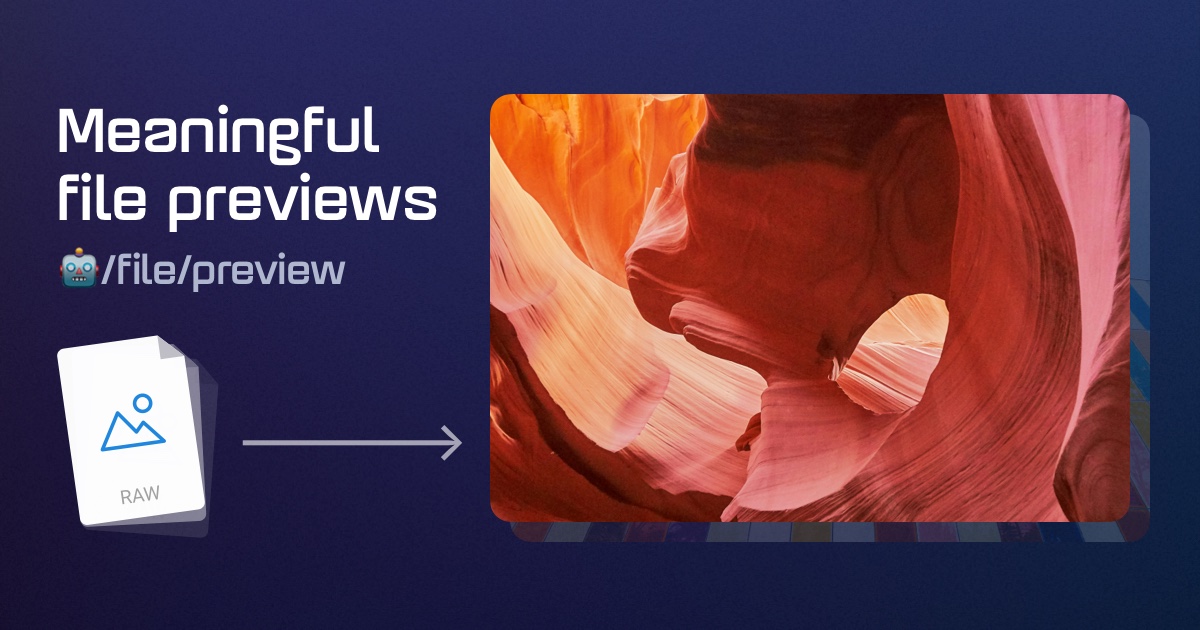
We're proud to introduce our new **/file/preview** Robot — a Transloadit feature designed to automatically create previews for supported file formats, with an icon fallback. Whether you need video thumbnails, audio album art or waveforms, document page previews, website screenshots, or archive icons, this Robot can deliver previews that help humans identify files quickly. We handle the complexity of the various file types, while you can focus on building your app.
The Robot can be deployed with a few lines of JSON, and uses file-specific strategies under the hood. It can simplify preview generation and help users recognize files in your app.
## What can it do?
[🤖/file/preview](/docs/robots/file-preview.md) is designed to create meaningful previews that help users quickly identify file contents. It supports:
* [](https://s3.amazonaws.com/tmp-urlproxy-us-east-1.transloadit.com/file-preview-blogpost/sunflower.jpg "Click to open original")**Images**: Optimized thumbnails for supported images, including RAW formats: [](https://s3.amazonaws.com/tmp-urlproxy-us-east-1.transloadit.com/file-preview-blogpost/mountain.dng "Click to open original")
* [](https://s3.amazonaws.com/tmp-urlproxy-us-east-1.transloadit.com/file-preview-blogpost/timelapse.mp4 "Click to open original")**Videos**: Frame extracts or short clips: [](https://s3.amazonaws.com/tmp-urlproxy-us-east-1.transloadit.com/file-preview-blogpost/timelapse.mp4 "Click to open original")(or a fallback icon when a content preview cannot be generated: [](https://s3.amazonaws.com/tmp-urlproxy-us-east-1.transloadit.com/file-preview-blogpost/timelapse.mp4 "Click to open original"))
* [](https://s3.amazonaws.com/tmp-urlproxy-us-east-1.transloadit.com/file-preview-blogpost/hisokana-mizugame.m4a "Click to open original")**Audio**: Embedded artwork (or waveform visualization if not available: [](https://s3.amazonaws.com/tmp-urlproxy-us-east-1.transloadit.com/file-preview-blogpost/joakim%5Fkarud-rock%5Fangel.mp3 "Click to open original"))
* [](https://s3.amazonaws.com/tmp-urlproxy-us-east-1.transloadit.com/file-preview-blogpost/the-analog-adventures.pdf "Click to open original")**Documents**: First page previews
* [](https://s3.amazonaws.com/tmp-urlproxy-us-east-1.transloadit.com/file-preview-blogpost/news.ycombinator.com.html "Click to open original")**Web Pages**: Page screenshots
* [](https://s3.amazonaws.com/tmp-urlproxy-us-east-1.transloadit.com/file-preview-blogpost/archive.zip "Click to open original")**Archives**: Type-specific icons
The available preview depends on the file's format, codec, and media data. A content preview cannot be generated for every file.
With the default strategies, the Robot falls back to a type-specific icon when a richer preview is unavailable, as with the archive example above. See the [strategy documentation](/docs/robots/file-preview.md#strategy) for the supported strategies and their fallback order.
The Robot is designed to offer pragmatic and beautiful defaults out of the box, but its behavior can be fully customized. More on that below.
## Why Transloadit?
Generating previews for a wide range of files is complex due to the vast landscape of image formats, video codecs, and document types. This complexity is especially pronounced for niche customers, such as photographers working with **raw image** formats, or users handling various Microsoft Office documents. Due to the constant evolution of image and video formats, one has to consistently invest into keeping up and supporting the latest formats. Consult our [supported formats](/docs/supported-formats.md) and the [Robot reference](/docs/robots/file-preview.md) for the available conversions.
Building a custom, in-house solution for file preview generation requires substantial engineering resources to cover even a subset of the numerous file types and binds these resources long-term as the in-house solution needs to be maintained and updated for new formats. Additionally, processing user-uploaded files is a delicate matter that can make your infrastructure **susceptible to vulnerability** in the various file processing tools. Instead, consider outsourcing file preview generation to Transloadit, moving that processing away from your application servers and allowing your engineering team to focus on creating the best possible service for your customers, while Transloadit handles the complex part of file previews.
[🤖/file/preview](/docs/robots/file-preview.md) can be combined with [other Robots](/services.md) to create workflows unique to your business, and those workflows can be put to work to transform any part of your file pipeline. Transloadit can work directly on your end-user's uploads, import large media libraries, or even convert files on-demand, streaming optimized results directly to browsers using our [Smart CDN](/services/content-delivery.md).
## Implementation options
You have several ways to deploy 🤖/file/preview, but the best way to start is to create a Template that references this Robot. A Template is a JSON recipe in your account that describes what Transloadit should do with your files. You can create a Template in the Template Editor in your account, or via our [Terraform Provider Plugin](/docs/sdks/terraform-provider-transloadit.md).
### Pre-processing
With pre-processing, you create and save the previews in your storage. This is typically done when the file is uploaded by the user for the first time, well before your end-user requests a preview. Pre-processing like this can save latency on the first request, at the trade-off of more encoding and storage costs, as well as a more complex integration than on-demand.
Transloadit can handle uploads of the originals, generate previews and then save in your storage. To make Transloadit handle uploads, reference [🤖/upload/handle](/docs/robots/upload-handle.md) in your Template like so:
```json
{
"allow_steps_override": false,
"steps": {
":original": {
"robot": "/upload/handle"
},
"previewed": {
"robot": "/file/preview",
"use": ":original",
"width": 300,
"height": 200
},
"stored": {
"use": ["previewed", ":original"],
"robot": "/s3/store",
"credentials": "YOUR_AWS_CREDENTIALS",
"acl": "bucket-default",
"path": "my_target_folder/${unique_prefix}/${file.url_name}"
}
}
}
```
Replace `YOUR_AWS_CREDENTIALS` with the name of your saved [Template Credentials](/docs/api/template-credentials-post.md). The unique prefix gives each original and preview its own object path. `acl: "bucket-default"` omits the generated ACL header; configure your bucket's access policy separately. Follow the [S3 setup and permission guidance](/docs/robots/s3-store.md) before using this Template.
The uploads typically come from browsers (via e.g. [Uppy](https://uppy.io/)), but back-end SDKs can upload files as well.
Let's zoom in on the browser use case first.
#### Front-end uploads
Transloadit could handle browser uploads that end-users perform using [Uppy](https://uppy.io/), our open source file uploader for web browsers. When accepting files, Transloadit will follow the Template's Instructions, hence generate previews and store them in your S3 bucket. The originals will be saved as well, because in the `"stored"` step we had: `"use": ["previewed", ":original"]`.
Before running the browser code, implement a protected `POST /api/transloadit/assembly-options` handler in your own application. It must authenticate your user, authorize the upload, check the request's origin or your app's CSRF token, and apply your upload limits. Bind it to the fixed ID of the upload Template above; do not sign arbitrary Templates or Instructions supplied by the browser. Enable [Signature Authentication](/docs/api/authentication.md#signature-authentication) for your Workspace and keep `allow_steps_override: false` in the saved Template.
On that backend, use the [signature generation example](/docs/api/authentication.md#example-code-for-different-languages) to return `{ params, signature }` with a short-lived `auth.expires`. Return the serialized `params` string unchanged, and keep the Auth Secret on the server. This endpoint belongs to your app; it is not a Transloadit API endpoint.
Install `@uppy/core`, `@uppy/dashboard`, and `@uppy/transloadit` with Yarn in your browser project, and add an element with `id="uppy-dashboard"` to the page. Include this code through your bundler:
```javascript
import Uppy from '@uppy/core'
import Dashboard from '@uppy/dashboard'
import Transloadit from '@uppy/transloadit'
import '@uppy/core/dist/style.min.css'
import '@uppy/dashboard/dist/style.min.css'
const uppy = new Uppy()
.use(Dashboard, {
inline: true,
// This is the element where the dashboard will be rendered:
target: '#uppy-dashboard',
})
.use(Transloadit, {
waitForEncoding: true,
assemblyOptions: async () => {
const response = await fetch('/api/transloadit/assembly-options', {
method: 'POST',
credentials: 'same-origin',
})
if (!response.ok) {
throw new Error(`Could not authorize the upload (HTTP ${response.status})`)
}
return response.json()
},
})
uppy.on('transloadit:complete', (assembly) => {
const preview = assembly.results?.previewed?.[0]
if (preview) {
console.log('Preview object URL:', preview.ssl_url)
} else {
console.log('No previews were generated.')
}
})
```
The S3 export updates results under the producing Step, `previewed`. A returned `ssl_url` does not grant access to a private S3 object or guarantee a permanent download URL. Authorize downloads in your application, for example with short-lived S3 download URLs generated by your backend.
Uppy was created by Transloadit. It packs more features than this post has room for, so please refer to the [Uppy website](https://uppy.io/) for more information.
There are also SDKs for [Android](/docs/sdks/android-sdk.md) and [iOS](/docs/sdks/transloaditkit.md), in case you want to integrate with native mobile apps.
#### Back-end uploads
Back-ends can upload to Transloadit just as well. Here is how it would look like in Node.js:
Install `@transloadit/node` with `yarn add @transloadit/node`. Save the example as `upload.mjs` and run it with `node upload.mjs`. Set `TRANSLOADIT_KEY`, `TRANSLOADIT_SECRET`, and `TRANSLOADIT_TEMPLATE_ID` in the server's environment first, using the ID of the upload Template above, and replace `./file.mp4` with a readable local file. Keep the Auth Secret out of browser code and source control.
```javascript
import { Transloadit } from '@transloadit/node'
const { TRANSLOADIT_KEY, TRANSLOADIT_SECRET, TRANSLOADIT_TEMPLATE_ID } = process.env
if (!TRANSLOADIT_KEY || !TRANSLOADIT_SECRET || !TRANSLOADIT_TEMPLATE_ID) {
throw new Error('Set TRANSLOADIT_KEY, TRANSLOADIT_SECRET, and TRANSLOADIT_TEMPLATE_ID.')
}
const transloadit = new Transloadit({
authKey: TRANSLOADIT_KEY,
authSecret: TRANSLOADIT_SECRET,
})
const assembly = await transloadit.createAssembly({
params: { template_id: TRANSLOADIT_TEMPLATE_ID },
files: { file: './file.mp4' },
waitForCompletion: true,
})
const preview = assembly.results?.previewed?.[0]
if (preview) {
console.log('Preview object URL:', preview.ssl_url)
} else {
console.log('No previews were generated.')
}
```
There are [SDKs](/docs/sdks.md) for many more backend languages that make it easy to integrate, but you could also interface with our [REST API](/docs/api.md) directly.
#### Imports
Instead of letting Transloadit handle uploads, Transloadit can import files from [cloud sources like S3](/services/file-importing.md), generate previews, and export them back to S3 or other storage providers. This could be done for a single file, or for entire buckets containing many terabytes of files.
Just as an example, we'll also add [🤖/file/filter](/docs/robots/file-filter.md) to the Template below, to showcase how you could filter on file type, and in this case only generate previews for audio files. This could be adapted to filter on other properties, such as file size, bitrate, media type, etc. Here is the full Template that you would create in the Template Editor in your account:
```json
{
"steps": {
"imported": {
"robot": "/s3/import",
"credentials": "YOUR_AWS_CREDENTIALS",
"path": "my_source_folder/"
},
"audio_filtered": {
"use": "imported",
"robot": "/file/filter",
"accepts": [["${file.type}", "==", "audio"]],
"error_on_decline": false
},
"previewed": {
"robot": "/file/preview",
"use": "audio_filtered",
"width": 300,
"height": 200,
"format": "png"
},
"stored": {
"use": "previewed",
"robot": "/s3/store",
"credentials": "YOUR_AWS_CREDENTIALS",
"acl": "bucket-default",
"path": "my_target_folder/${unique_prefix}/${file.url_name}"
}
}
}
```
You can reference and execute this Template with any of our [SDKs](/docs/sdks.md). For Node.js, use the same package and server environment setup as above, but set `TRANSLOADIT_TEMPLATE_ID` to the ID of this import Template. Save the following as `import.mjs` and run `node import.mjs`. No local upload is needed. If the filter matches no audio files, there are no previews to read:
```javascript
import { Transloadit } from '@transloadit/node'
const { TRANSLOADIT_KEY, TRANSLOADIT_SECRET, TRANSLOADIT_TEMPLATE_ID } = process.env
if (!TRANSLOADIT_KEY || !TRANSLOADIT_SECRET || !TRANSLOADIT_TEMPLATE_ID) {
throw new Error('Set TRANSLOADIT_KEY, TRANSLOADIT_SECRET, and TRANSLOADIT_TEMPLATE_ID.')
}
const transloadit = new Transloadit({
authKey: TRANSLOADIT_KEY,
authSecret: TRANSLOADIT_SECRET,
})
const assembly = await transloadit.createAssembly({
params: { template_id: TRANSLOADIT_TEMPLATE_ID },
waitForCompletion: true,
})
const preview = assembly.results?.previewed?.[0]
if (preview) {
console.log('Preview object URL:', preview.ssl_url)
} else {
console.log('No previews were generated.')
}
```
### On-demand
Finally, you can also generate previews on-demand using our [Smart CDN](/services/content-delivery.md). This means Transloadit does no work until a user requests the preview. Transloadit then imports the original file from your storage, generates the preview, and serves it directly to the end-user. We cache the result close to the end-user.
This has the following benefits:
* The preview only gets created when users request it, saving costs on media files that are not actually requested.
* A cached result can be served without another encoding charge while it remains available and cacheable. Cached delivery still incurs bandwidth charges. An expired or evicted result may need to be processed again, with new processing charges.
* Integrating is simpler, as you don't need to process the previews yourself (save them, store references, etc.). Instead you simply create a Template and add a Smart CDN URL for the asset to your webpage or app.
* You can tailor the preview to the end-user's device, resolution, bandwidth, etc. This means you're not wasting bytes on delivery that doesn't translate in a better user experience. This saves bandwidth, battery, and time.
If you want to learn more about on-demand previews, signed URLs, and delivery measurements, please refer to our post: [On-demand media previews with Smart CDN](/blog/2024/06/file-preview-with-smart-cdn.md).
Here is an example Template that instructs Transloadit to import a media file from S3, generate a preview, and serve it using our Smart CDN:
```json
{
"steps": {
"imported": {
"robot": "/s3/import",
"credentials": "YOUR_AWS_CREDENTIALS",
"path": "${fields.input}"
},
"previewed": {
"use": "imported",
"robot": "/file/preview",
"width": "${fields.w}"
},
"served": {
"use": "previewed",
"robot": "/file/serve"
}
}
}
```
The URL structure for this Template is:
`https://my-workspace.tlcdn.com/my-template/file.mp4?w=300`
Use the name of your saved Template Credentials for `YOUR_AWS_CREDENTIALS` and place the source file at `file.mp4` in that S3 bucket. Here, `my-template` is the Template name, `${fields.input}` receives `file.mp4`, and `${fields.w}` receives `300` from the URL. Replace the Workspace and Template placeholders with your own values. This shows the URL structure; for protected delivery, authorize the requested file and dimensions on your backend and generate a signed URL with an expiration time before sending it to the browser. Follow the [Smart CDN signing guide](/docs/api/authentication.md#smart-cdn). Set `require_signature_auth` to `1` using the [Template API](/docs/api/templates-template-id-put.md); this is a Template setting outside the Instructions JSON above. Do not expose a general-purpose signing endpoint that accepts arbitrary paths or transformations.
## Customize the preview
While 🤖/file/preview offers pragmatic and beautiful defaults out of the box, you can control its output using several parameters to match your app's look and feel:
* `format`: Output format for the thumbnail
* `width` and `height`: Dimensions in pixels
* `resize_strategy`: How to fit the preview into dimensions
* `background`: Background color for padding in hex format (`#rrggbb[aa]`)
* `strategy`: Customize preview generation per file type (audio, video, image, etc.)
For audio waveforms:
* `waveform_center_color` and `waveform_outer_color`: Gradient colors in hex format
* `waveform_height` and `waveform_width`: Waveform dimensions
For icons:
* `icon_style`: Appearance of the fallback icon
* `icon_text_color`: Text color in hex format
* `icon_text_font`: Font family
* `icon_text_content`: Text shown on the icon
For video clips:
* `clip_format`: Animation format
* `clip_offset`: Start position in seconds
* `clip_duration`: Length in seconds
* `clip_framerate`: Frames per second
* `clip_loop`: Whether to loop the animation
For image optimization:
* `optimize`: Enable file size optimization
* `optimize_priority`: Balance between conversion speed and compression ratio
* `optimize_progressive`: Enable progressive loading
For accepted values, defaults, limits, and strategy-specific behavior, please refer to the [🤖/file/preview documentation](/docs/robots/file-preview.md).
## Security considerations
To protect your files and control access to the preview functionality, we recommend implementing request signing for front-end integrations (Uppy, Smart CDN, mobile). For Smart CDN delivery in particular, authorize access to the requested file and transformation before signing a Smart CDN URL. The signature protects the URL; anyone who obtains it can use it while it remains valid.
For detailed information, including examples in many programming languages, please refer to our [documentation on Smart CDN signed URLs](/docs/api/authentication.md#smart-cdn).
Remember to:
* Always generate signed URLs on your back-end,
* Never expose your Auth Secret in client-side code, and
* Implement an expiration time for your signed URLs.
Shorter expirations tighten the replay window. A longer expiration lets a URL remain usable for longer; it does not guarantee cache retention, cache hits, or lower processing costs. Cached delivery remains billable, and expired or evicted results can require processing again.
## Advanced use cases
While this post covers the basic routes to use 🤖/file/preview, there are many ways to integrate it into more complex pipelines:
* **Automated batch generation**: Schedule preview generation for entire storage buckets to maintain up-to-date previews at scale.
* **Event-driven integrations**: Trigger preview processing automatically whenever new files arrive, ensuring that previews are always ready when needed.
* **Compose hybrid workflows**: Combine [🤖/file/preview](/docs/robots/file-preview.md) with [other Transloadit Robots](/services.md) — such as [🤖/image/facedetect](/docs/robots/image-facedetect.md) or [🤖/video/encode](/docs/robots/video-encode.md)—to build multi-step transformations in a single workflow.
* **Expanded storage options**: Beyond AWS S3, you can seamlessly integrate with all major cloud storage providers, as well as your own custom infrastructure (S3-compatible storage or SFTP).
* **Customizable caching**: Pair [🤖/file/preview](/docs/robots/file-preview.md) with Smart CDN configurations that fit your performance and reliability requirements.
* **Bring your own CDN**: For high-volume deployments, customers can leverage existing contracts and infrastructure by pairing our encoding platform with their own CDN.
## Pricing & availability
Check our [Pricing page](/pricing.md) for current plans, rates, and plan restrictions, and the [Robot's documentation on pricing](/docs/robots/file-preview.md#pricing).
## Further reading
You might be interested in our
* [Demos](/demos.md) to get an idea of other features and how you can combine them.
* [Smart CDN](/services/content-delivery.md) to learn more about how to serve files, previews, and other conversions on-demand.
* [On-demand media previews with Smart CDN](/blog/2024/06/file-preview-with-smart-cdn.md) for a demo, delivery measurements, and a server-side signing example.
## Next steps
To get started, follow these steps:
1. [Sign up](/c/signup/) for a Transloadit account.
2. Create your first Template with 🤖/file/preview.
3. Test different preview and integration options using our Template Editor.
4. Integrate previews into your application.
Need help getting started? We build Robots, but we're real humans who enjoy giving a hand! Feel free to reach out to us at [support@transloadit.com](mailto:support@transloadit.com?subject=Stuck%20integrating).
Otherwise, happy transloading 🙂
[#content-delivery-service](/blog/tags/content-delivery-service.md)[#file-preview-robot](/blog/tags/file-preview-robot.md)
### Join 25k+ developers
Sign up for our [monthly newsletter](/newsletters.md) to receive direct links to 3 exclusive tech — and 2 product updates. No less, no more.
Email address
Subscribe
One email a month. Unsubscribe anytime.
## File uploading and encoding. Made simple.
Trusted by Coursera and The New York Times for a reliable API, top-notch support, and open source like [Uppy](https://uppy.io) and [Tus](https://tus.io).
[Try it free](/c/signup/)[Request a demo](/request-demo.md)
No credit card needed · Cancel anytime