

Let AI pick your video thumbnails

A thumbnail is often the first thing people see of a video. If you take frames at fixed intervals,
you get whatever happens to be on screen at that moment: a product half out of view, a fade to
black, or someone mid-blink. Set smart: true on the
🤖 /video/thumbs Robot, and it
extracts more frames than you ask for, scores them with a vision model, and returns the ones that
make the best previews.
Try it
This script uses our Node SDK to take four thumbnails from a five-second
product clip. Save it as smart-thumbs.mjs
after npm install @transloadit/node:
import { Transloadit } from '@transloadit/node'

const transloadit = new Transloadit({
  authKey: process.env.TRANSLOADIT_KEY,
  authSecret: process.env.TRANSLOADIT_SECRET,
})

const status = await transloadit.createAssembly({
  params: {
    steps: {
      imported: {
        robot: '/http/import',
        url: 'https://demos.transloadit.com/inputs/fake-ad.mp4',
      },
      thumbnailed: {
        robot: '/video/thumbs',
        use: 'imported',
        count: 4,
        smart: true,
      },
    },
  },
  waitForCompletion: true,
})

for (const { meta } of status.results.thumbnailed) {
  console.log(`${meta.thumb_offset}s  score ${meta.smart_score}  ${meta.smart_reasons[0]}`)
}
Each thumbnail comes back with its timestamp, a score from 0 to 100, and the model’s reasons:
$ TRANSLOADIT_KEY=MY_AUTH_KEY TRANSLOADIT_SECRET=MY_SECRET_KEY node smart-thumbs.mjs
1.538s  score 80  piggy bank visible
1.923s  score 88  best centered composition
2.308s  score 86  clear focal point
2.692s  score 81  good product emphasis
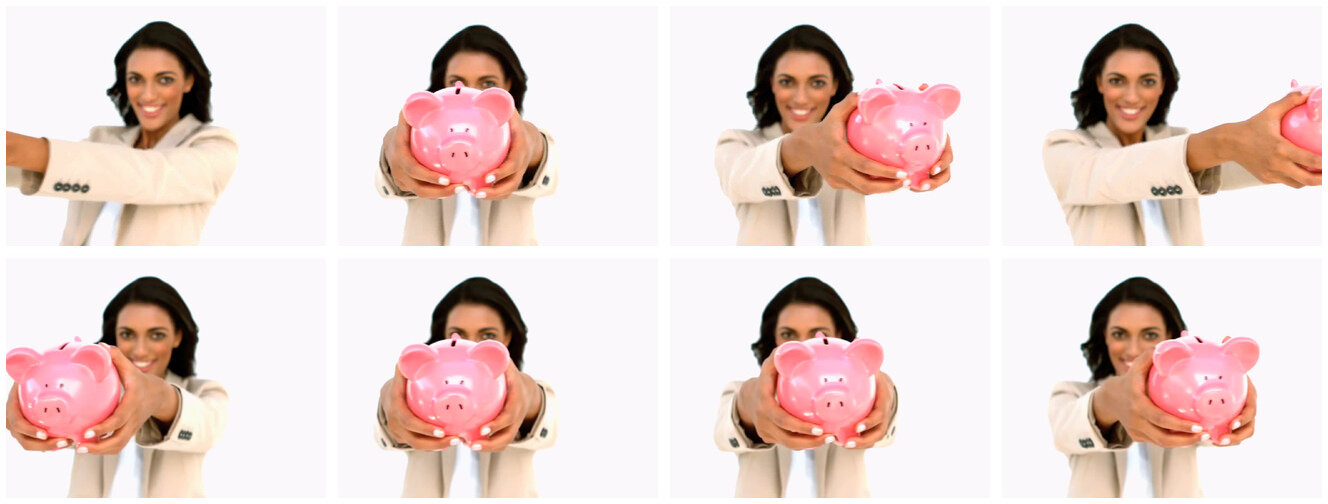
Without smart, the same Step returns frames at fixed intervals, here one per second. In the top
row below, the first frame has no product in it and the last one cuts it off at the edge. The bottom
row shows the frames that smart picked: the piggy bank is in full view in all four.
How the selection works
The Robot first extracts evenly spaced candidate frames: three per thumbnail you request, up to
smart_max_candidates (20 by default), and never fewer than count. With count: 4, it extracts
12 candidates, about 0.4 seconds apart in this clip.
A vision model then scores every candidate. It favors clear, bright, well-composed, and visually
interesting frames, and penalizes blurry, blank, transition, and mid-blink frames. You get the best
count frames back in chronological order, not in score order. Each one carries
meta.smart_score and meta.smart_reasons, so if you need a single poster image, keep the frame
with the highest score.
You don’t need an account with an AI provider or keys of your own. We run the model for you.
Cost and speed
Smart selection is billed on top of the regular /video/thumbs charge. The AI analysis costs what
the provider charges us plus 50%, and it is converted to usage at your plan’s per-GB price, so it
shows up in the Assembly’s bytes_usage. In our tests it came to less than a tenth of a cent per
analyzed frame: the 12 frames above cost between a third and half a cent. With the defaults of
count: 8 and 20 candidates, expect about a cent per video.
It does take a little longer. Our smart runs took 8 to 9 seconds, compared with about 2 seconds for
frames at fixed intervals. Lower count or smart_max_candidates to analyze fewer frames, and if
you process many videos, run smart selection in the background, for instance with an
Assembly Notification.
When AI scoring is unavailable
If AI scoring fails, the Assembly still completes. The Robot then returns candidates in
chronological order, puts a fallback reason in meta.smart_reasons, and adds a warning to the
Assembly’s warnings. Check for that warning if your application depends on the selection.
Smart selection picks its own timestamps and ignores offsets. If you need frames at exact
timestamps, set smart: false and pass offsets.
Get started
Add "smart": true to a /video/thumbs Step in your
Template or Assembly Instructions. The
🤖 /video/thumbs docs list all parameters, and you can
create a free account to try it on your own videos.