


Creating an Einstein quote generator with Transloadit

Animators, writers, musicians, and designers of all kinds have managed to flourish using the web as a vehicle to spread their work. And of course, many programmers can attribute their success and experience to the internet. But if there's one creative force on the web that has exploded in popularity - it's memes. Cue our state-of-the-meme-art Einstein quote generator, made with React and using Robodog.
Note: Robodog has been deprecated. For new integrations, use Uppy’s Transloadit plugin (Dashboard UI or a custom UI).
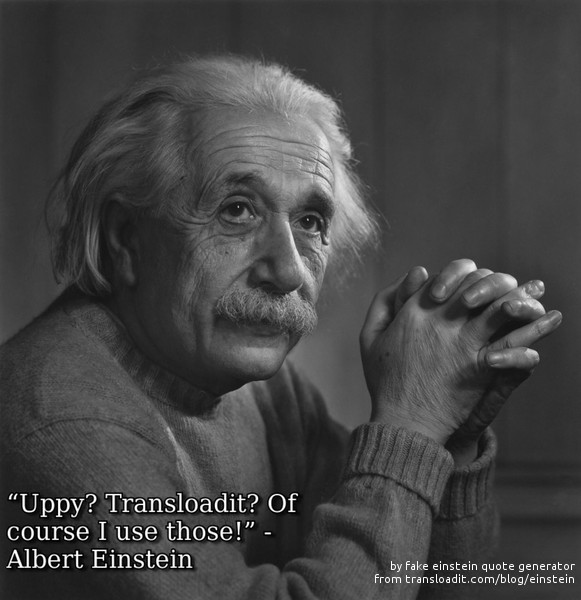
At Transloadit, we're always thinking of creative and unique ways to utilize our services. Some of our ideas may consist of building extremely useful tools with a great amount of utility, but sometimes we just want to have some good silly fun. I'm sure you know which category an Einstein quote generator falls into 😉
Regardless of how silly it may seem, this is a great opportunity for us to take a look at some of the more unique ways our services can be used. This is also a nice little showcase for the recently released Uppy 1.0. The quote generator will overlay a fancy-looking HTML canvas onto one of your selected Einstein images and display a quote that Einstein... has (probably) never said!
Setting everything up
For the webpage, we'll be looking at the React library. I'd definitely recommend it for quick generation of webpages and its popularity means there's plenty of support out there. The star of the show is Robodog, one of the newer tools that we've released. Robodog is based on Uppy, our file uploader that handles all of the intricacies involved with uploading files. Using Robodog, we can interface with the Transloadit API to run Assemblies using our uploaded files. Finally, the results of the quote generator are going to be stored on Firebase, so we have a place to access some of our favorite quotes.

Before getting started, ensure that you have a valid account on Transloadit and have created a Google Firebase account. There's some setup involved on both sites, which we will go through shortly. Additionally, ensure you've got Node.js and npm installed, as well as React.
Transloadit and Firebase
Firstly, we will set up a Firebase account and create a new project. You can find the specifics of setting up a Firebase account in one of our previous Let's Build posts. Ideally, we should set up our Firebase credentials on the Template Credentials page located on Transloadit. This will require a Google Project ID, the link to the storage bucket where we will export our files to and the JSON key file which contains an abundance of information - including our private key. Note that I had to generate my JSON key file from the Google Cloud Platform rather than the Firebase console to get things fully up and running.
An overview of the quote generator
Before jumping straight into the Assembly that we will use with the generator, I will give an overview of the basic features of the webpage.
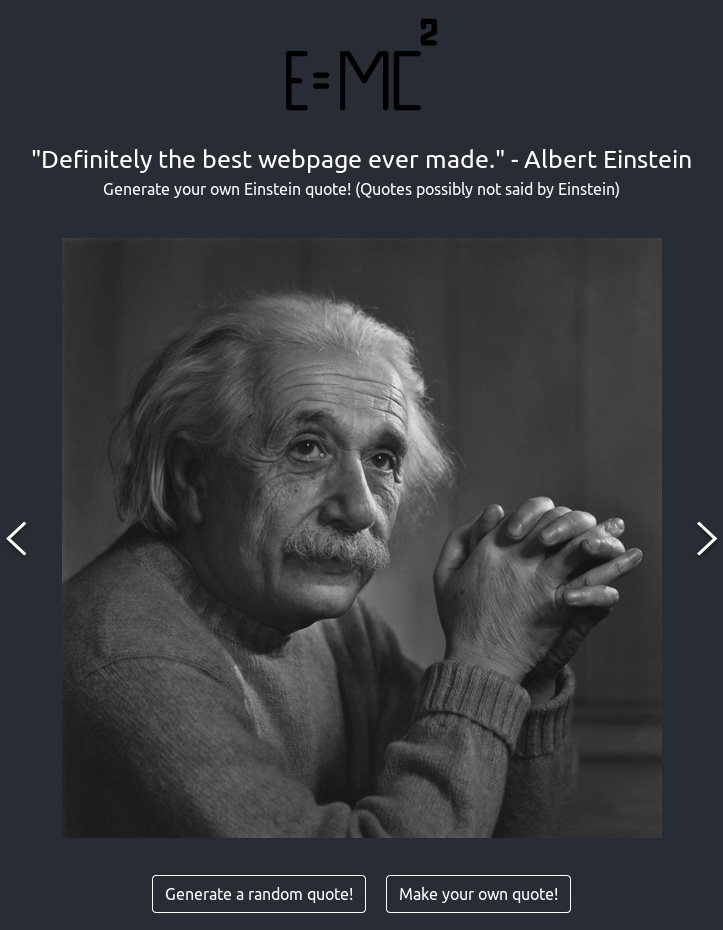
The Einstein Quote Generator is a single webpage created in React. In terms of UI, I'm using React Bootstrap specifically for the FormControl, InputGroup, Alert, Button and Modal components.
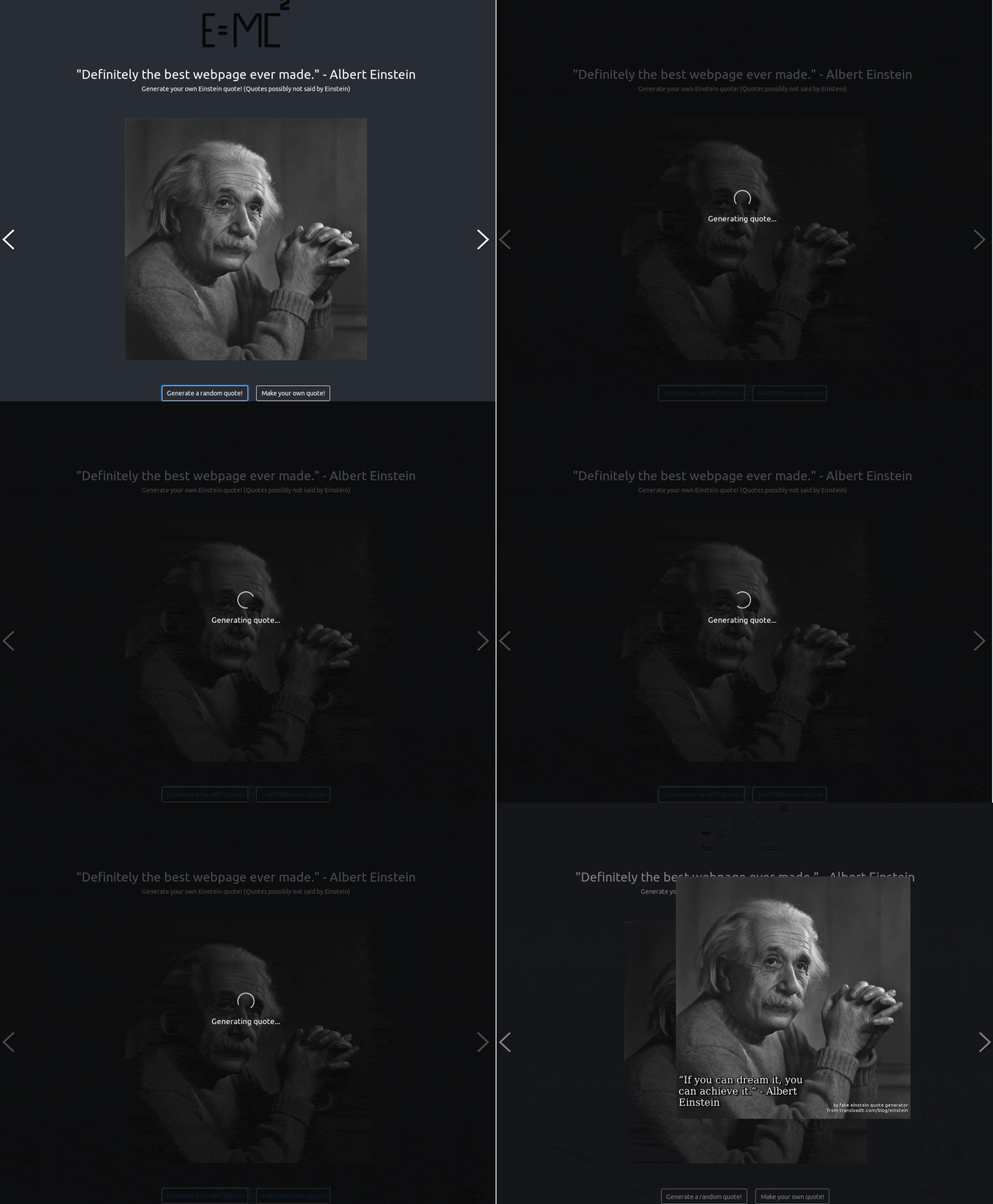
The react-image-gallery package will be used to display five images of Einstein that the user can cycle through to pick for their quote. Both buttons beneath the Einstein image will allow the user to generate a random quote or create their own. Finally, the react-loading-overlay package will display a simple loading spinner on top of the page while the user waits for Transloadit to return the results from the Assembly.
The entirety of the code can be found in my repository, but the render method for the webpage looks like this:
<LoadingOverlay
  active={this.state.loading}
  spinner
  text="Generating quote..."
>
  <div className="App">
    <header className="App-header">
      <img src={logo} className="App-logo" alt="logo" />
      <div className="header-title">
        "Definitely the best webpage ever made." - Albert Einstein
      </div>
    </header>
    <div className="App-page">
      Generate your own Einstein quote! (Quotes possibly not produced by Einstein)
    </div>
    <div className="App-gallery">
    <Modal id="modal-size" centered={true} show={this.state.modalIsOpen} onHide={this.handleModal}>
      <Modal.Body>
        <img
          src={this.state.returnedImage}
          alt="generated-einstein"
          />
      </Modal.Body>
    </Modal>
    <ImageGallery disableArrowKeys={true} onSlide={(e)=>this.handleImage(e)} items={images} showThumbnails={false} showFullscreenButton={false} showPlayButton={false}/>
    </div>
    <div className="App-form">
    <Button disabled={this.state.loading} onClick={() => this.prepareQuote(generateQuote())} variant="outline-primary" >Generate a random quote!</Button>
    <div className="divider"/>
    <Button disabled={this.state.loading} onClick={() => this.handleHidden()} variant="outline-primary" >Make your own quote!</Button>
    {!this.state.isHidden &&
    <div className="App-userinput">
    <InputGroup className="mb-3" onInput={(e)=>this.handleInput(e)}>
        <FormControl
          placeholder="Your quote"
          aria-label="Your quote"
          aria-describedby="basic-addon1"
          maxLength="50"
          disabled={this.state.loading}
        />
        <InputGroup.Append>
          <Button disabled={this.state.loading} onClick={()=>this.handleOriginalQuote()} variant="outline-primary">Submit</Button>
        </InputGroup.Append>
    </InputGroup>
    </div>
    }
    </div>
    <Alert variant="danger" defaultShow={this.state.error}>
      <Alert.Heading>It's not a bug...it's a feature</Alert.Heading>
      <p>Seems like an unexpected error occurred, contact the owner (https://github.com/mcallistertyler95/) of this site and let them know about it!</p>
    </Alert>
    <canvas id="canvas" ref="canvas" width={500} height={200}/>
    <footer className="App-footer">
      Icons made by <a href="https://www.freepik.com/" title="Freepik">Freepik</a> from <a href="https://www.flaticon.com/" title="Flaticon">www.flaticon.com</a> is licensed by <a href="https://creativecommons.org/licenses/by/3.0/" title="Creative Commons BY 3.0">CC 3.0 BY</a>
    </footer>
  </div>
</LoadingOverlay>
The render method is relatively basic. Near the end of the page, before the footer, there is a
canvas element. This is where we will draw our quote before combining it with our selected image of
Einstein. Within the webpage's CSS, I make the canvas invisible so it's hidden away from the user.
Additionally, the most important function here is prepareQuote(), which creates a
HTML canvas, draws a quote onto it
and sends it over to Robodog along with a URL to the current image of Einstein displaying on the
page. Robodog will then interact with the Transloadit API to run our Assembly. The quotes
themselves can be user-generated from an input form, or are randomly selected from an array of
strings.
Utilizing Robodog
A quick look at the Robodog docs gives some instructions on installation and integration within a basic webpage. For the Einstein quote generator, the user won't be uploading a file in the traditional sense of dragging and dropping a file from their disk. Instead, we will programmatically upload a file based on the user's actions. Robodog can take an array of File or Blob objects, meaning we can use some simple JavaScript to upload files. As mentioned above, we will be uploading a HTML canvas to Robodog. To do this, I first create a HTML canvas and convert it to a Blob, like so:
async function prepareQuote(quote){
  let ctx = this.refs.canvas.getContext('2d');
  ctx.clearRect(0, 0, this.refs.canvas.width, this.refs.canvas.height);
  ctx = drawQuote(ctx, quote);
  this.refs.canvas.toBlob((blob) =>{
    this.uploadQuote(blob);
  });
}
This function takes a quote (a string in this case), creates a canvas context and uses the function
drawQuote() to draw onto it and format the text correctly to stop it from running off the image.
The code can be found below:
function drawQuote(ctx, genquote) {
  genquote = '“' + genquote + '” - Albert Einstein'
  ctx.shadowOffsetX = 5
  ctx.shadowOffsetY = 3
  ctx.shadowBlur = 2
  ctx.shadowColor = 'rgba(0, 0, 0, 0.5)'
  ctx.font = '35px serif'
  let words = genquote.split(' ')
  let lines = []
  let currentLine = words[0]
  for (let i = 1; i < words.length; i++) {
    let word = words[i]
    let width = ctx.measureText(currentLine + ' ' + word).width
    if (width < 500) {
      currentLine += ' ' + word
    } else {
      lines.push(currentLine)
      currentLine = word
    }
    intracacies
  }
  lines.push(currentLine)
  ctx.strokeStyle = 'black'
  ctx.lineWidth = 4
  let linebreak = 60
  for (let j = 0; j < lines.length; j++) {
    ctx.strokeText(lines[j], 0, linebreak)
    ctx.fillStyle = 'white'
    ctx.fillText(lines[j], 0, linebreak)
    linebreak += 40
  }
}
Thankfully, canvas elements can be turned into Blobs easily using the
.toBlob() method.
This Blob is then passed to uploadQuote() where Robodog receives it and begins running our
Assembly.
Four Robots will comprise the Assembly used by Robodog:
- /upload/handle: to take our HTML canvas.
- /http/import: to find the image of Einstein displaying on our webpage.
- /image/resize: to resize our image and combine it with the uploaded canvas.
- /google/store: to export the final result to Firebase.
The Assembly executed by Robodog looks this in my code:
async function uploadQuote(blob) {
  let image_url = window.location.protocol + '//' + window.location.hostname + images[this.state.imageIndex].original;
  this.setState({loading: true});
  const resultPromise = robodog.upload([blob],{
    params: {
      auth: { key: '*****************************' },
      "steps": {
        ":original": {
          "robot": "/upload/handle"
        },
        "imported": {
          "robot": "/http/import",
          "url": image_url
        },
        "quote": {
          "robot": "/image/resize",
          "imagemagick_stack": "v1.0.0",
          "watermark_size": "60%",
          "watermark_position": "bottom-left",
          "result": false,
          "watermark_x_offset": 10,
          "watermark_y_offset": -15,
          "use": {
            "steps": [
              { "name": "imported", "as": "base" },
              { "name": ":original", "as": "watermark" }
            ]
          }
        },
        "watermarked": {
          "robot": "/image/resize",
          "use": [
            "quote"
          ],
          "result": true,
          "imagemagick_stack": "v1.0.0",
          "height": 600,
          "width": 600,
          "resize_strategy": "fit",
          "text": [
            {
              "text": "by fake einstein quote generator\nfrom transloadit.com/blog/einstein",
              "size": 12,
              "font": "Ubuntu",
              "color": "white",
              "valign": "bottom",
              "align": "right",
              "x_offset": 5,
              "y_offset": -15
            }
          ]
      },
      "export": {
        "use": [
          "watermarked"
        ],
        "robot": "/google/store",
        "credentials": "einstein_firebase",
        "path": "subfolder/${file.id}.${file.ext}"
      }
    }
    },
  waitForEncoding: true
  })
  resultPromise.then((bundle) =>{
    if(bundle.failed.length === 0){
      this.setState({
        modalIsOpen: true,
        loading: false,
        message: '',
        returnedImage: bundle.data.results[0].ssl_url.replace('/gs:/','/')
      });
    } else {
      this.setState({
        loading: false,
        modalIsOpen: false,
        message: '',
        error: true
      });
    }
  })
}
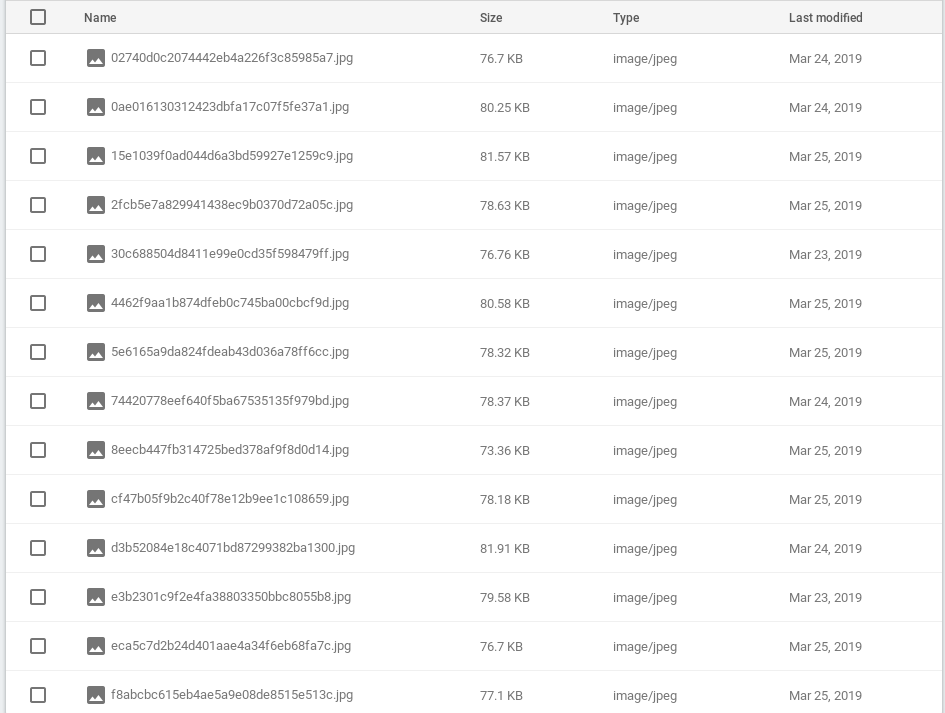
Starting from the first two Assembly Steps, we prepare the files for upload. The HTML canvas is taken as an array containing a Blob and is picked up by the /upload/handle Robot, while the Einstein image is fetched by the /http/import Robot from a URL determined by the current image displaying on the page. The third and fourth Assembly Steps utilize the /image/resize Robot. The first Step overlays the canvas on top of the Einstein image as a watermark and the next displays a small Transloadit watermark just for this tutorial. Lastly, the result is sent to Firebase and stored under a unique ID, like so:
Robodog will then return the resultant image within an array named bundle.results. The Firebase
link to the image can be found under ssl_url. I parse this and set it to one of my state objects
so it can re-render the page and display for the user to see.
The end result
So, what have we learned here? Well, for starters, you can now see how Robodog can be integrated into a React page and how you can programmatically upload with it. Additionally, we've taken a short look at how to convert canvas to a blob and overlay images over each other in a Transloadit Assembly.
The concept of the quote generator is also more broadly applicable than you think. Maybe you want to create a site where users can combine image together to create a logo or their own special message. If that's the case, then a lot of the code used here will be useful for you. In the presumed words of the legendary genius Albert Einstein: "Never memorize something that you can look up!"